How to Pay with Crypto (A Super Simple Guide for Beginners!)
Learn how to easily pay for your subscription with cryptocurrency! Our super simple, beginner-friendly guide shows you how to use Binance step-by-step.
Hello everyone!
We are currently moving our payment system from credit cards to cryptocurrency.
If you have zero experience with crypto, take a deep breath—you are in the right place! Think of paying with crypto just like buying tokens at an arcade. You simply use your regular money to buy some digital tokens, and then you put those tokens into our machine to use our service. That's it!
In this guide, we will use an app called Binance (which is just a digital bank for crypto), but these steps are almost exactly the same for any crypto app you choose.
Phase 1: Set Up Your "Digital Wallet"
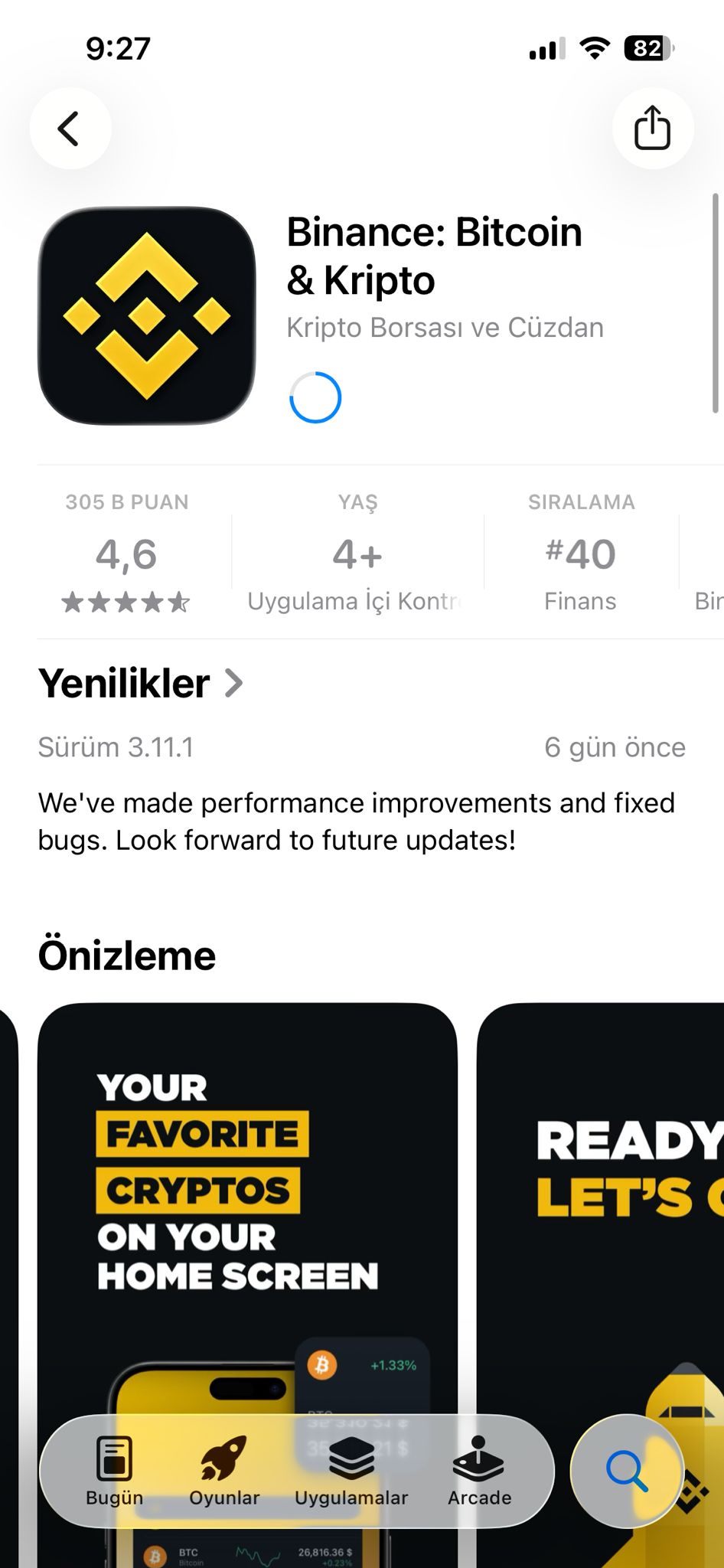
1. Download the Binance App First, you need a place to hold your digital money. Go to your phone's App Store or Google Play Store and download Binance, or visit the Binance website.
 Click to view full size
2. Create an Account Open the app, fill out the registration form, and verify your account. It’s just like signing up for a new email address or a bank account.
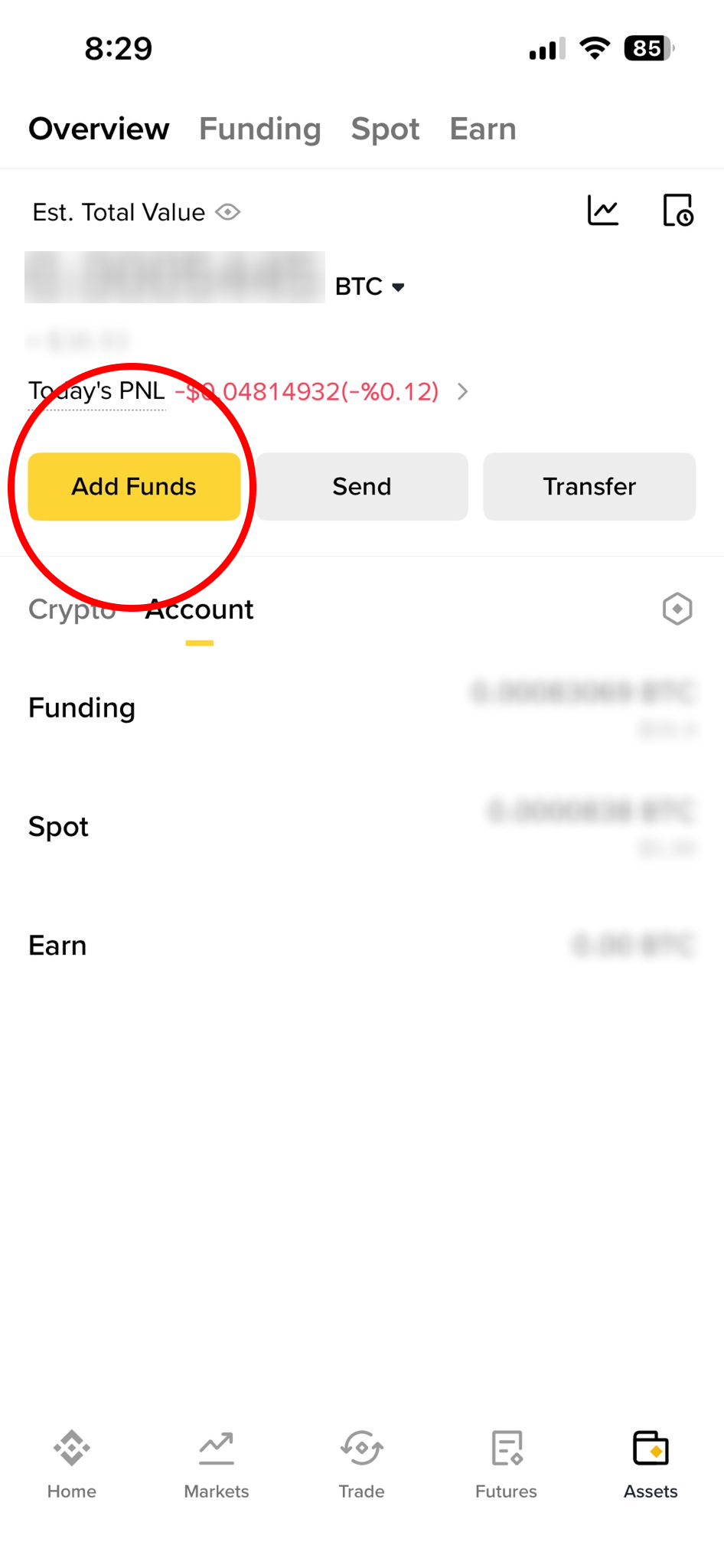
3. Add Regular Money (Funds) to Your Wallet Now, let's put some regular money (like US Dollars) into your new digital wallet.
 Click to view full size
- Click the "Add Funds" button.
 Click to view full size
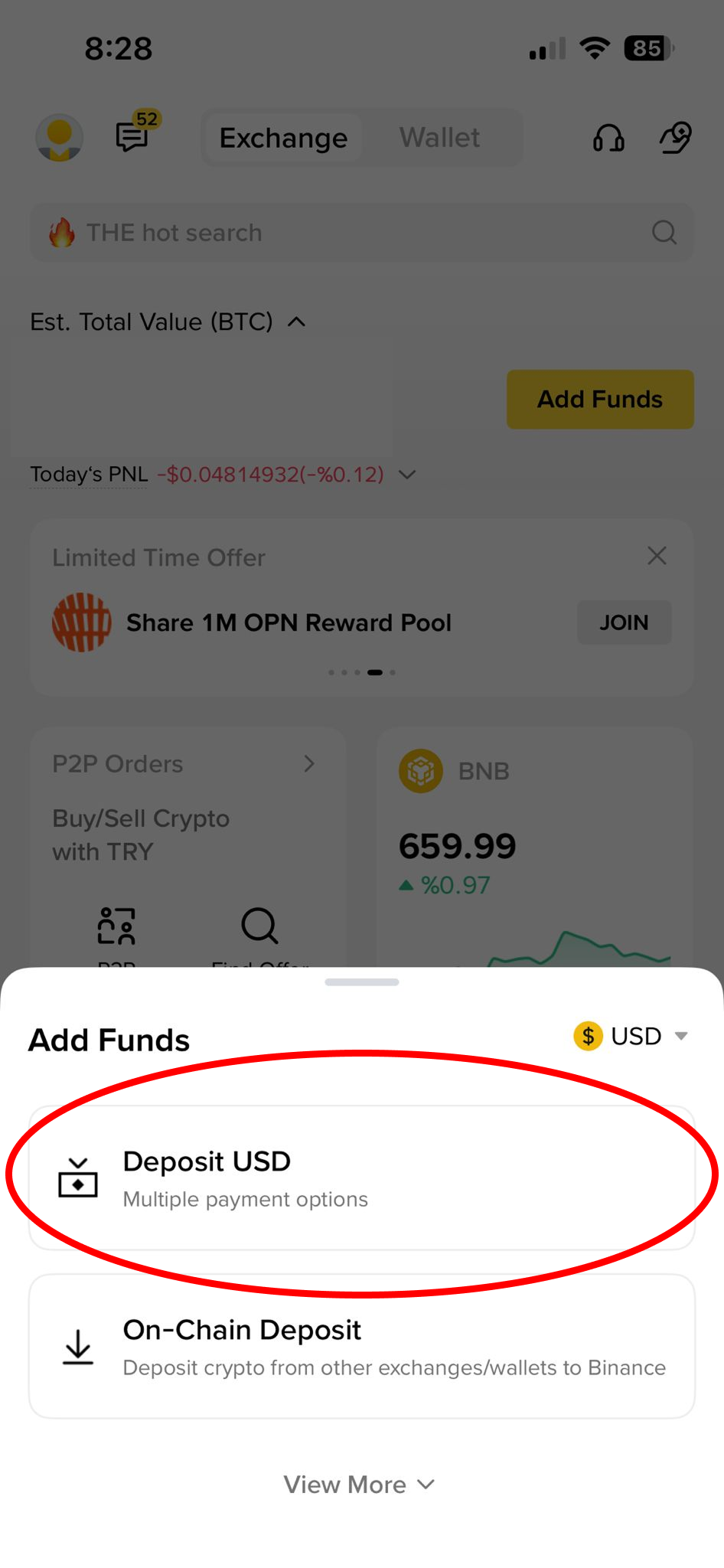
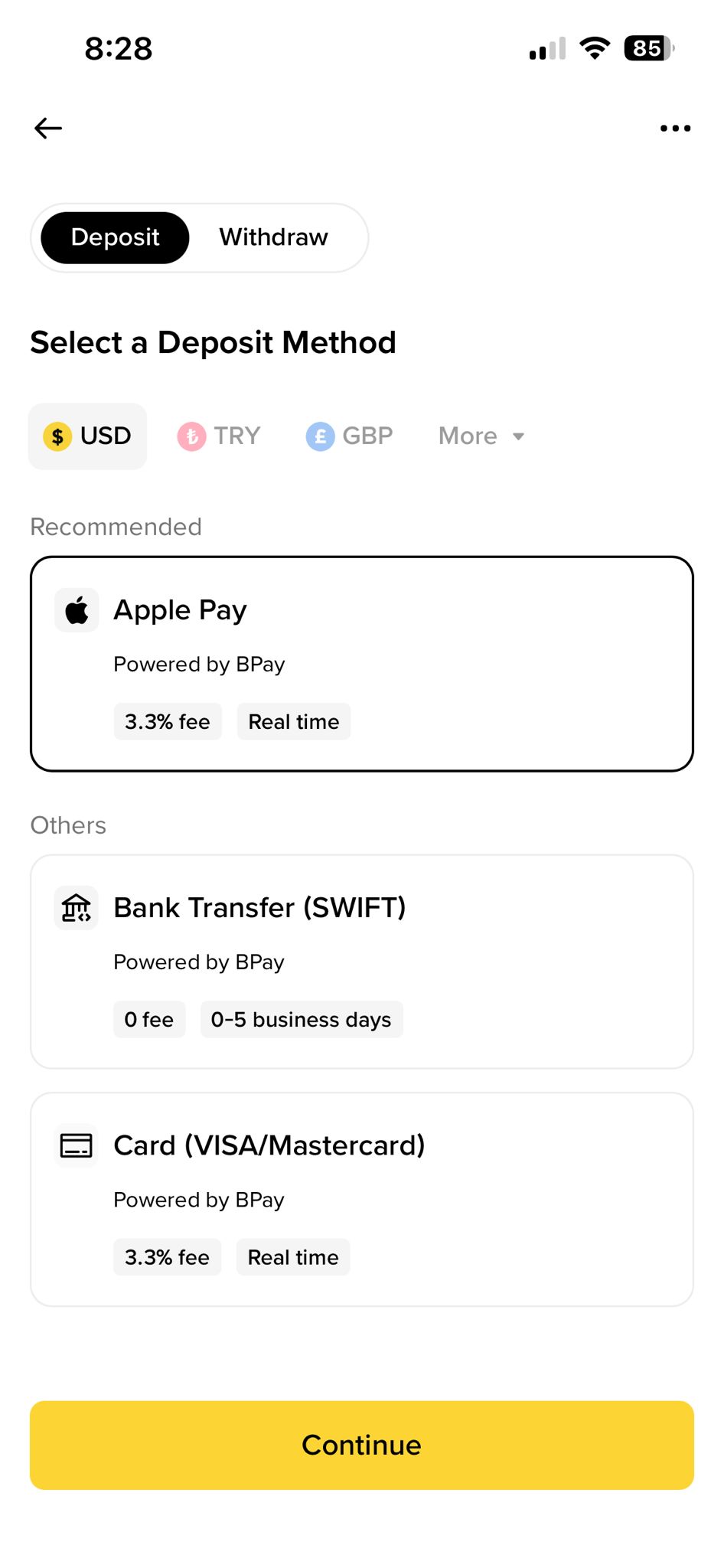
- Select "Deposit USD" (or your local currency).
 Click to view full size
- Choose how you want to pay. You can use Apple Pay, a Credit/Debit Card (Visa/Mastercard), or a Bank Transfer.
- Enter the amount of money you want to add. Once your money is in Binance, you are ready to shop!
Phase 2: Pick Your Plan on Our Website
Now that your wallet is funded, let's go get your subscription!
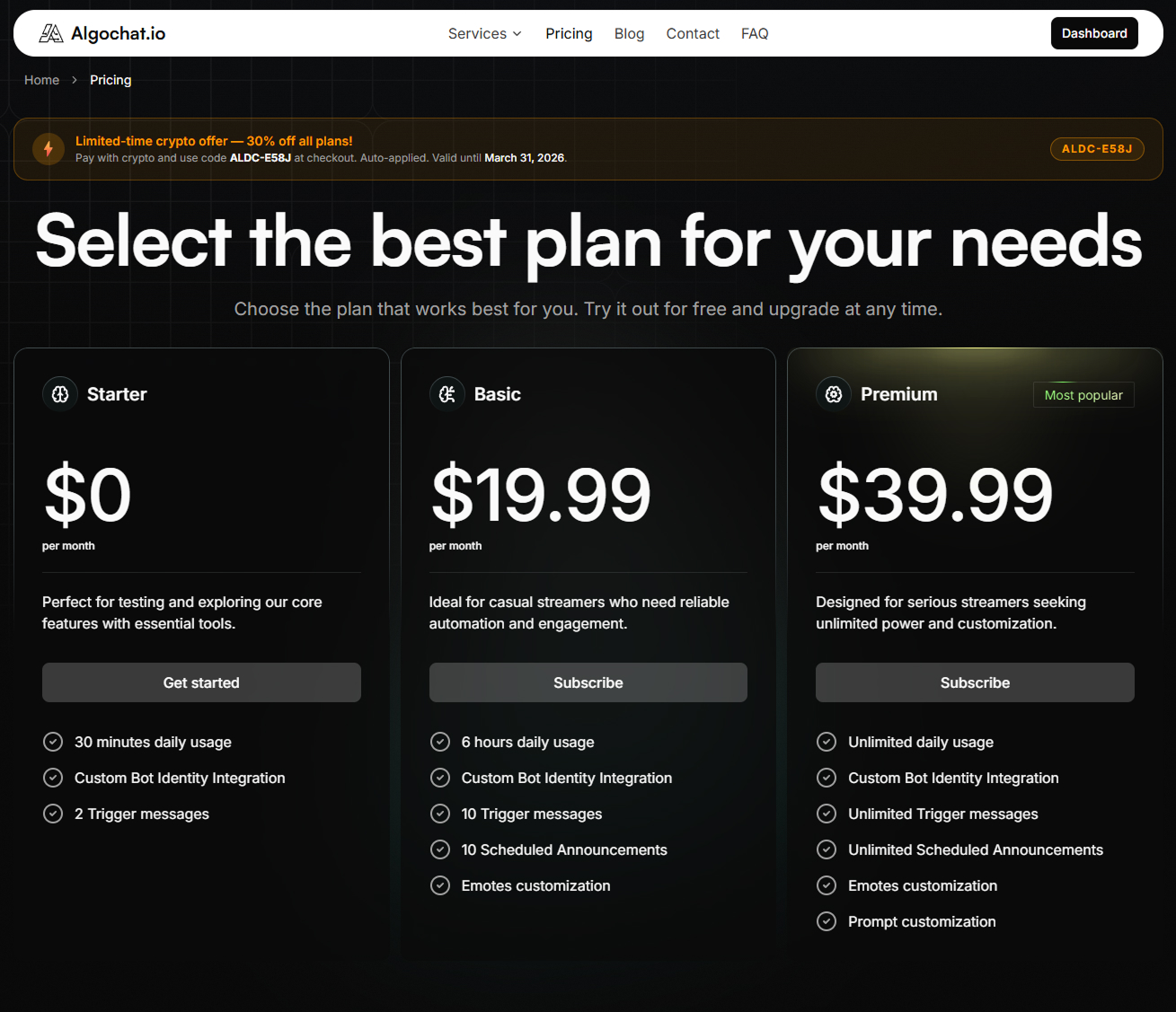
4. Choose Your Subscription Go to our pricing page.
 Click to view full size
- Pick the plan that fits you best and click "Subscribe".
 Click to view full size
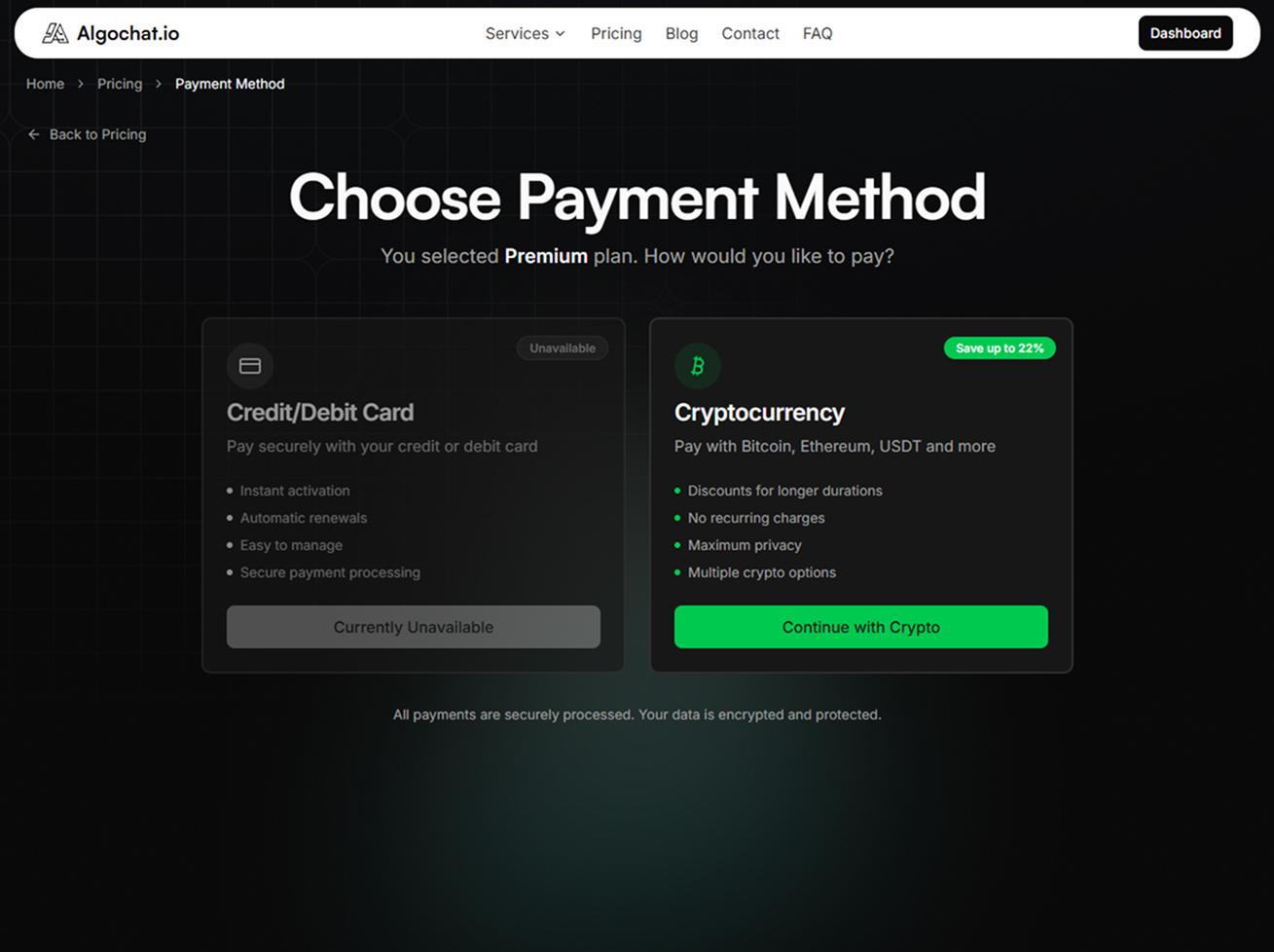
- Click "Continue with Crypto".
 Click to view full size
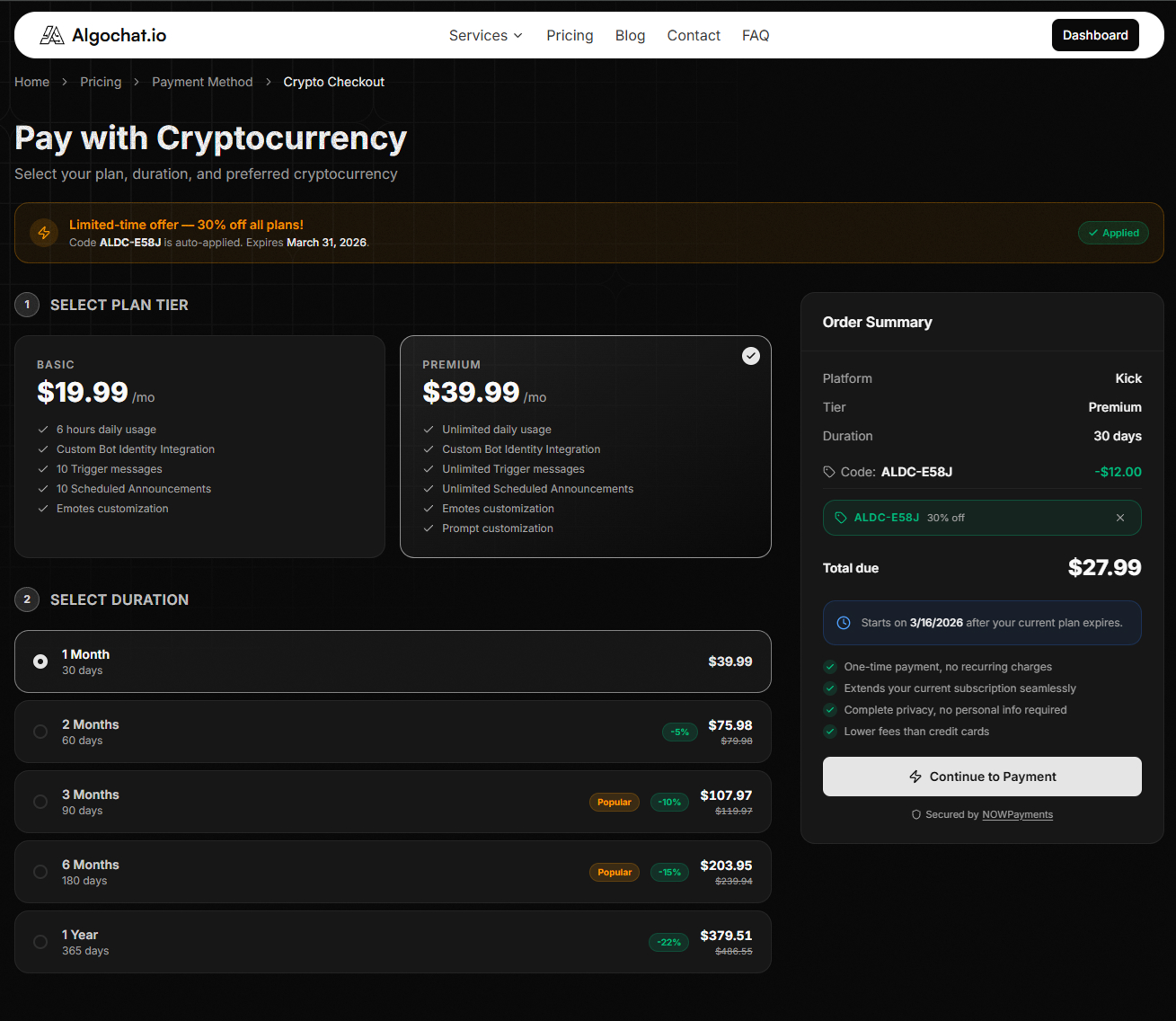
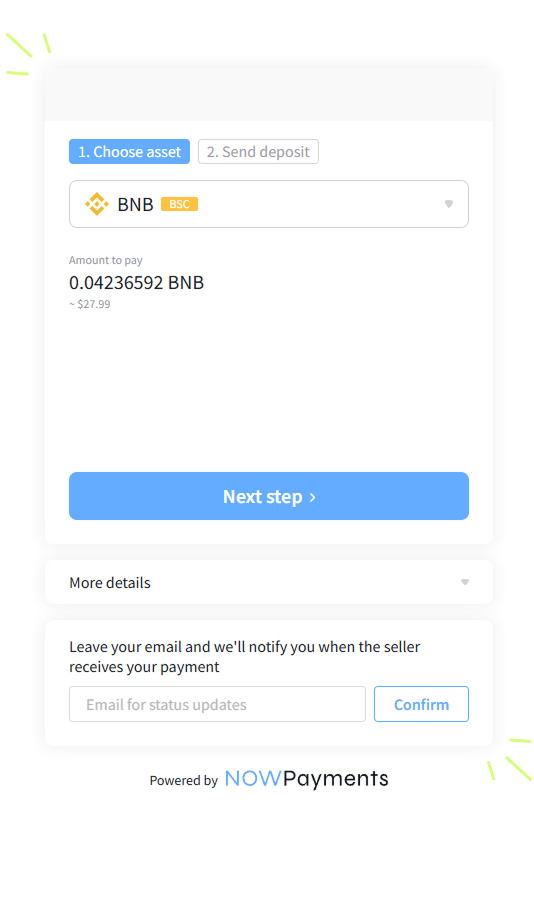
- Double-check your plan duration, then click "Continue to payment". You will be taken to a secure checkout page (called Nowpayments).
 Click to view full size
5. Pick Which "Digital Coin" You Want to Use Here, you are choosing which type of digital token you want to pay us with. For beginners, we highly recommend choosing "USDT" (which is a digital token always equal to exactly $1) or "BNB".
- Once you pick your coin, click "Next Step".
 Click to view full size
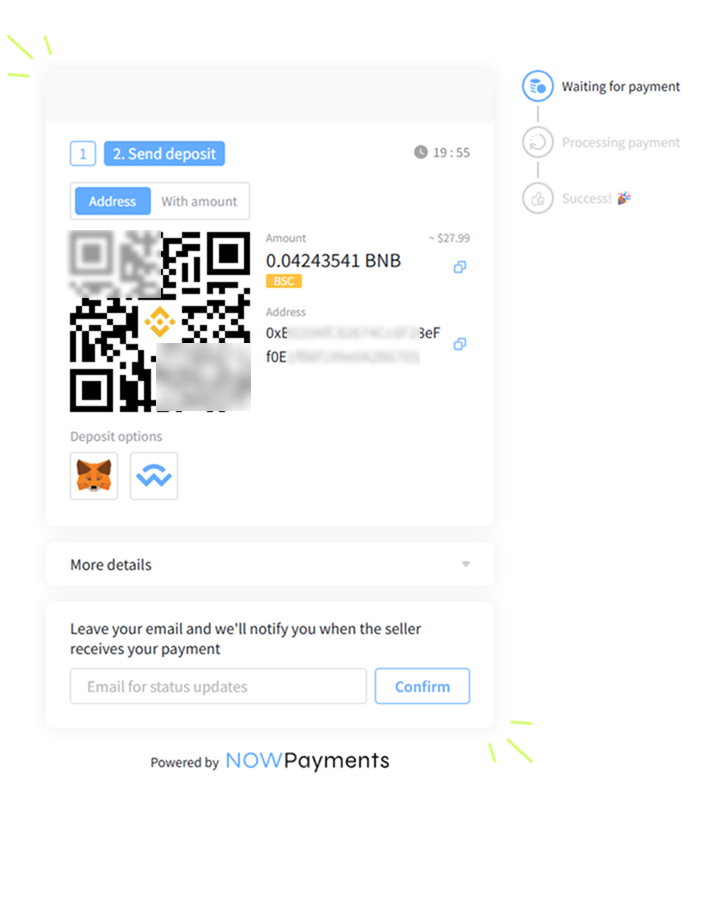
- You will now see a screen showing a QR Code, a long mix of letters and numbers (this is our digital "mailbox address"), and an exact total. Leave this screen open!
Phase 3: Send the Payment (The Final Step!)
Now, we just need to send the digital money from your Binance app to the "mailbox address" on your screen.
6. Convert Your Money to Crypto Go back to your Binance app. If you just have regular Dollars in your account, tap the "Trade" button at the bottom to swap your Dollars for the coin you chose earlier (like USDT or BNB).
7. Send the Money
 Click to view full size
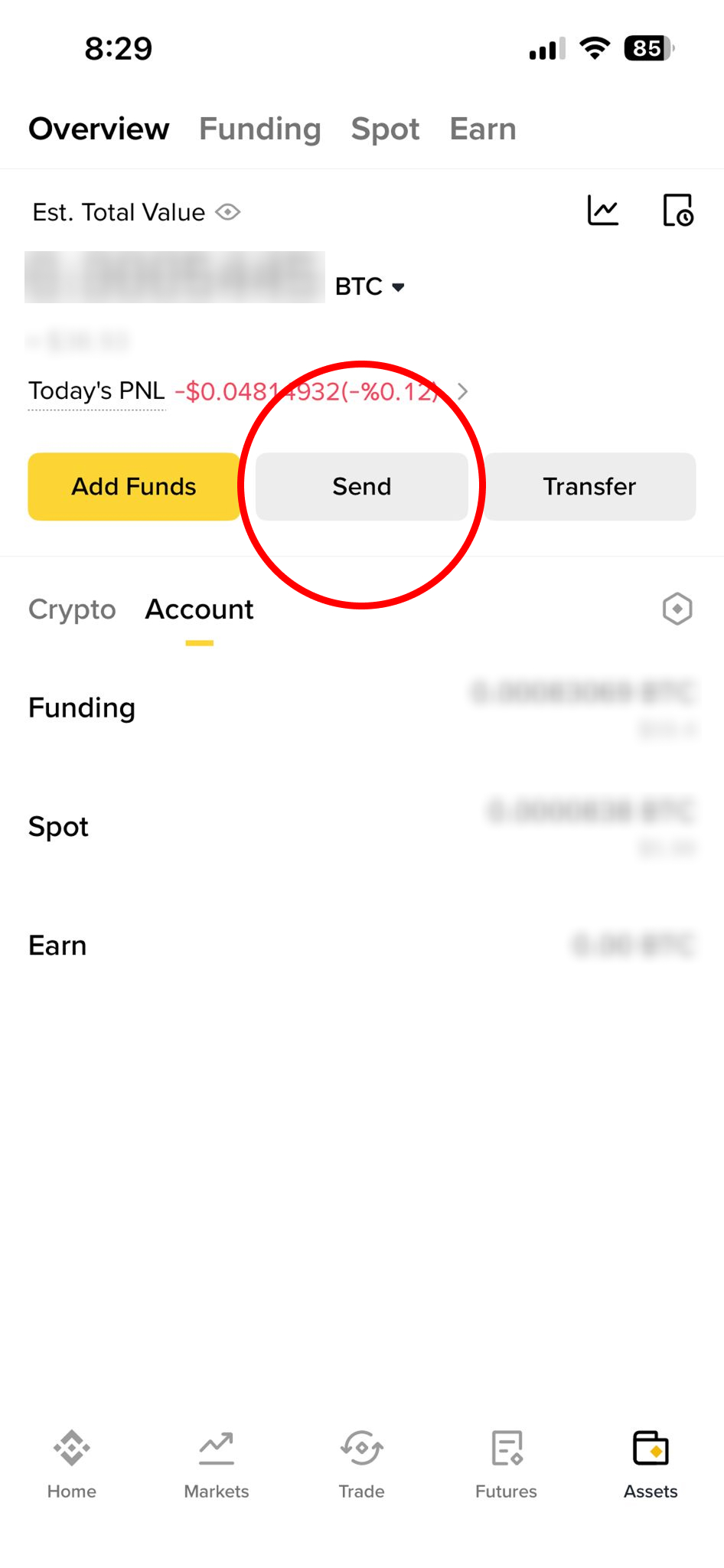
- Go to your "Assets" or "Wallet" tab and click the "Send" or "Withdraw" button. ("Withdraw" just means you are taking the money out of your app to send it to us).
 Click to view full size
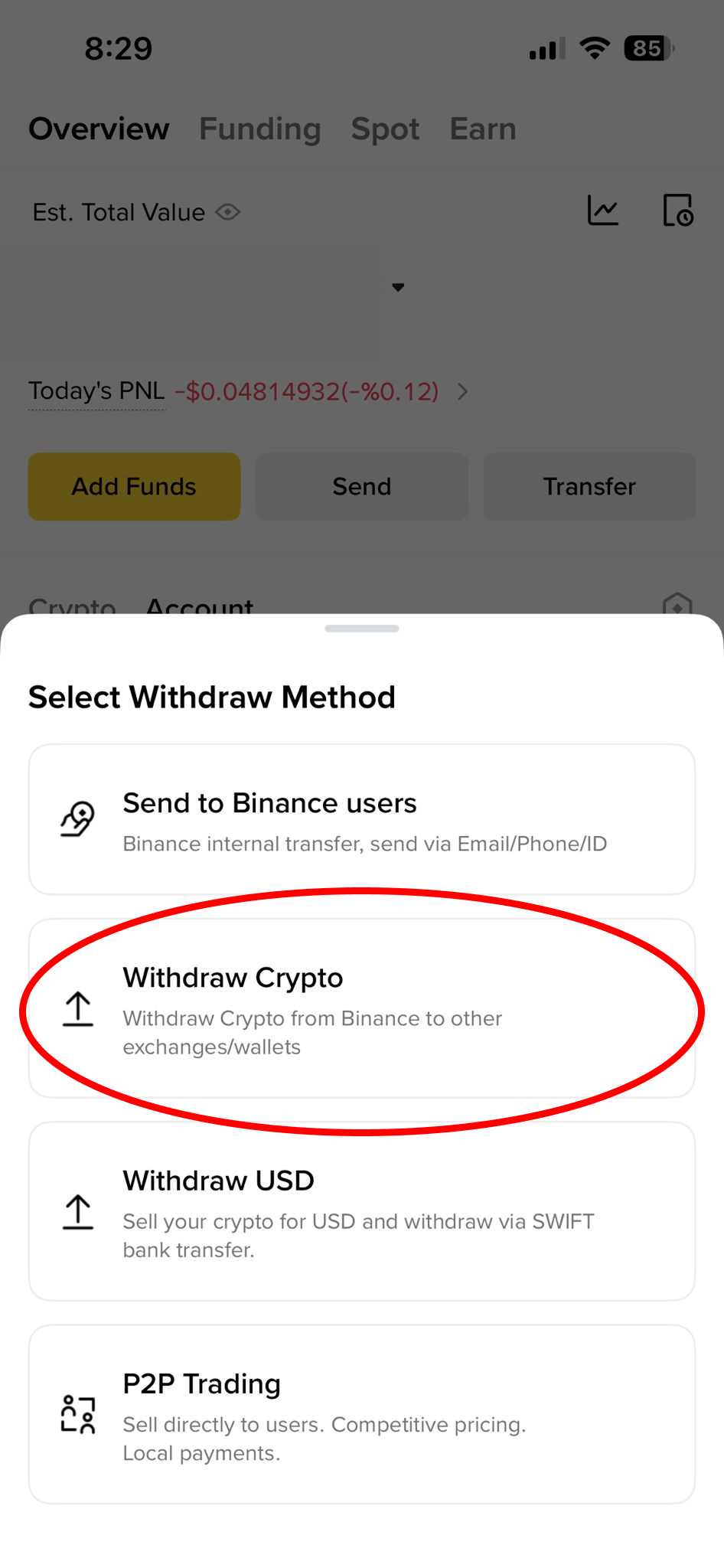
- Select "Withdraw Crypto".
- Select the exact same coin (USDT or BNB) that you picked on our checkout screen earlier.
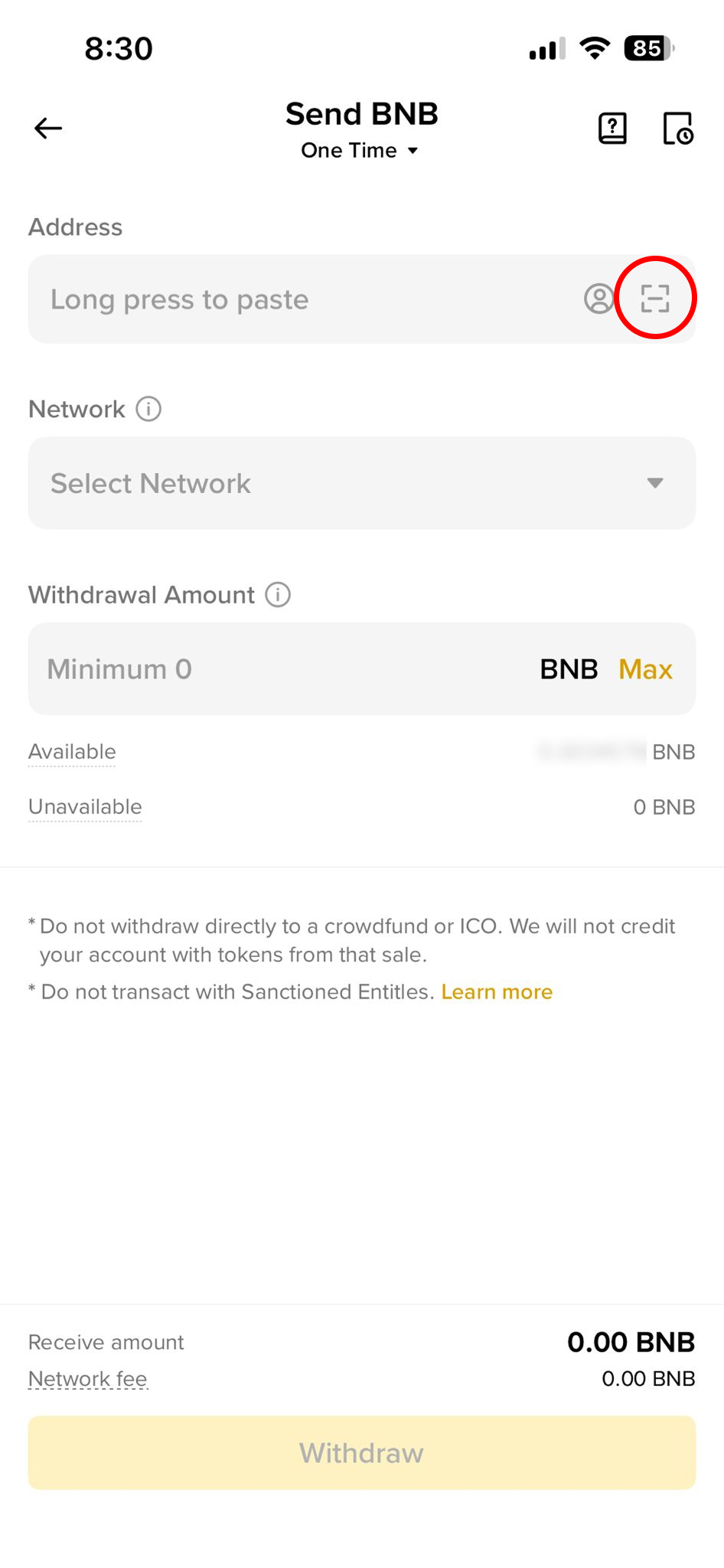
8. Fill in the Details
 Click to view full size
- Address: This is our digital mailbox! You can copy and paste the long code from our checkout page, OR, for an easier way, click the little scanner icon 🔍 in the app and point your phone camera at the QR code on your computer screen (just like scanning a menu at a restaurant!).
 Click to view full size
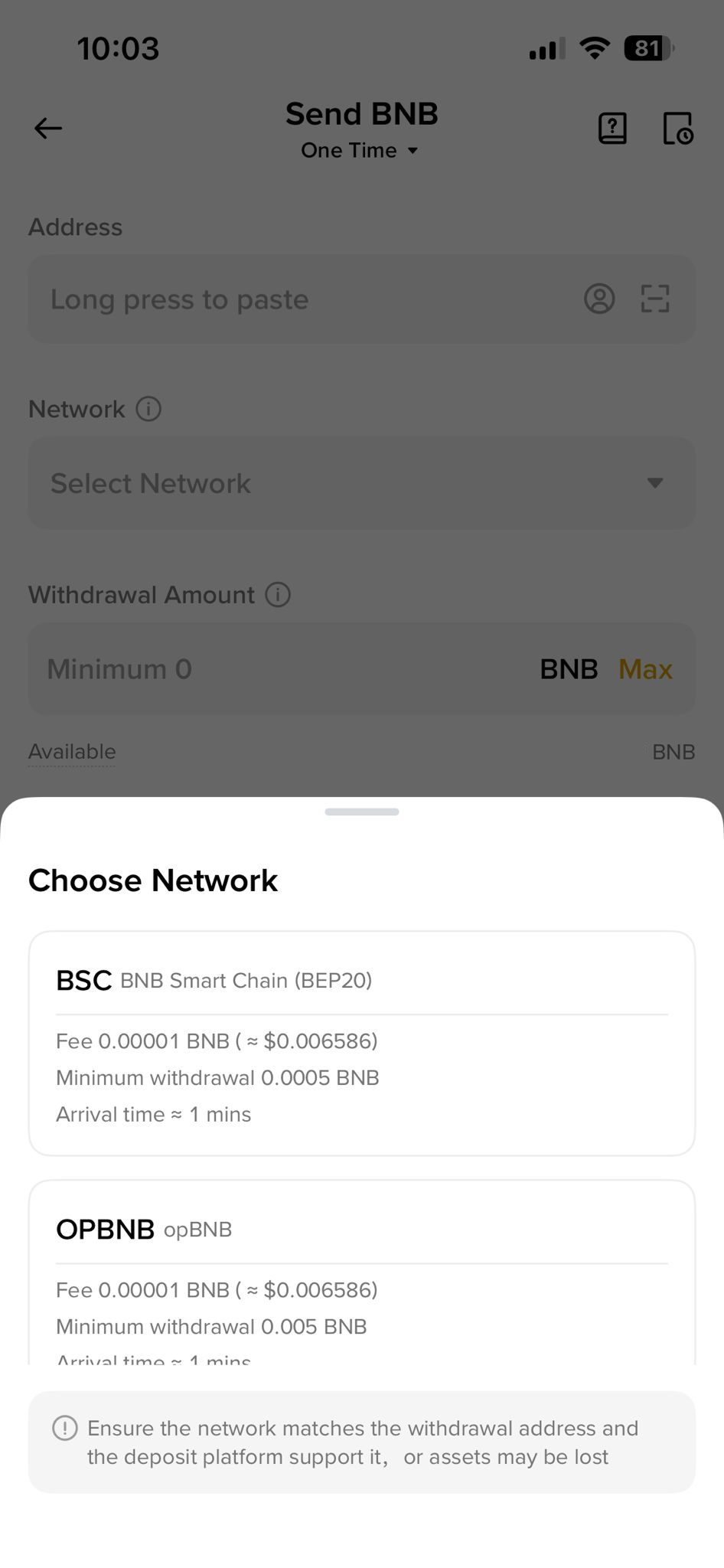
- Network: Think of this as choosing between FedEx or UPS to deliver your money. It is very important you pick the right delivery truck! If you are using BNB, select the network called BSC.
- Amount: Type in the exact amount shown on the checkout screen.
9. Hit Withdraw!
Congratulations, you did it! 🎉 Just sit back and relax. The delivery usually takes between 1 to 5 minutes. As soon as the system sees the payment arrive, your subscription will activate automatically. Welcome aboard!